

Design with AI
From a natural-language brief to an approved BRD, a reviewable Project Analysis plan, Ask Your Project, and schema handoff — before you lock DBML.
Start


Describe your product in natural language
Start on the homepage with Try generating with AI, or open QuickCode Studio and choose Project with AI. Describe your product in natural language (optionally attach a PDF). Pick Anthropic, OpenAI, Google Gemini, DeepSeek, Groq, or NVIDIA. QuickCode does not jump straight to schema — it first runs BRD discovery, then Project Analysis, then per-module DBML.


Anthropic


OpenAI


Google Gemini


DeepSeek


Groq


NVIDIA
Do not generate Identity/User modules
QuickCode injects IdentityModule automatically. Do not add separate user, role, or auth modules in AI output or DBML, they conflict with the built-in module.
Platform modules from the catalog
When email, SMS, or similar capabilities fit, analysis can select ready-made PLATFORM modules from the QuickCode catalog instead of inventing duplicate services.
Business requirements
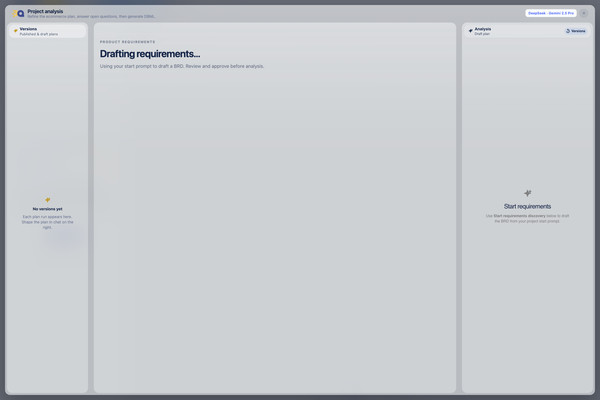
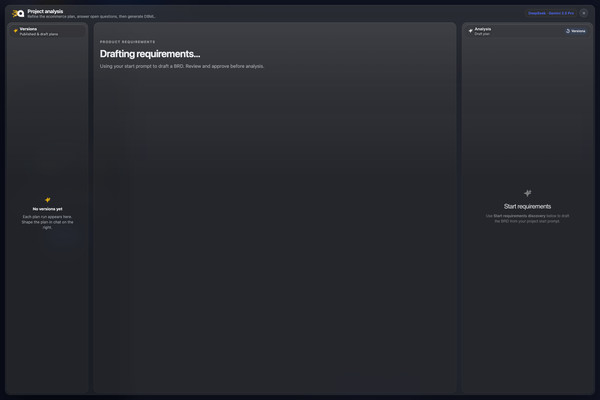


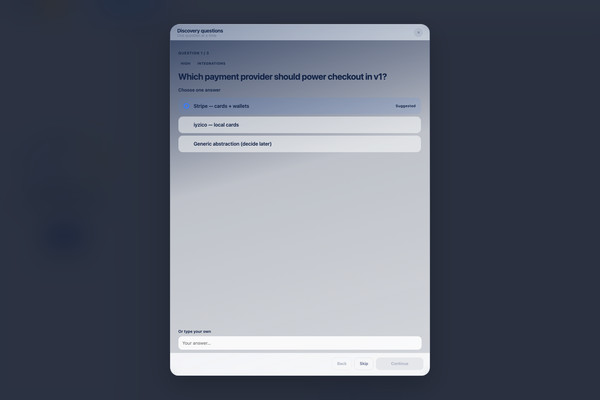
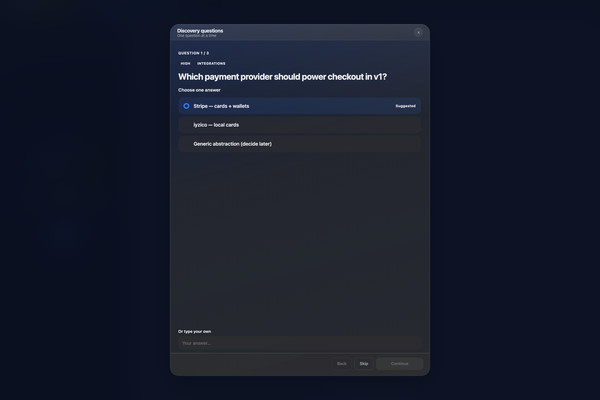


BRD discovery before architecture
QuickCode drafts a structured Business Requirements Document (BRD) from your brief: goals, actors, functional and non-functional requirements, assumptions, constraints, and out of scope. Discovery asks only the gaps that matter — with recommended answers and QuickCode defaults when the brief is incomplete. You approve the BRD; Project Analysis then runs against that approved baseline, not a free-form chat dump.
Structured BRD sections
Goals, actors, FR/NFR, assumptions, constraints, and out of scope — the business source of truth before modules and tables.
Discovery catalog + typed slots
Fixed discovery questions are rewritten into typed decisions (choice / score / text). Jev fills what the brief already covers; you answer only what remains unclear.
Recommended & QuickCode defaults
Each open question can offer a recommended answer or a QuickCode default. Defaults are recorded as explicit assumptions so Analysis stays auditable.
Approve before Analysis
Approve requirements when discovery is ready. Analysis receives only the approved BRD snapshot — narrower, controlled input for the module plan.
Why BRD first
Deep architecture waits until business ambiguity is reduced. That keeps module boundaries and DBML aligned with decisions you actually signed off.
Project Analysis


Review the Project Analysis plan
After you approve the BRD, Analysis returns a structured module plan: custom GENERATED modules, ready-made PLATFORM modules, and system Identity. The workspace is Versions · Plan · Chat — review the plan, refine in Analysis chat, and switch saved versions in the rail. Open questions highlight decisions that would still change the schema.
Jev before the heavy model
Analysis chat uses Jev to classify each turn as a typed intent (ask, change plan, generate DBML, and related hops). That routing is cheaper and more reliable than sending every message straight to a large chat model.
Open questions (optional)
Tap a question, pick a suggested answer or write your own, then update the plan. Questions are capped to the highest-priority gaps so you are not blocked by a long questionnaire.
Add a note
Optional context (providers, v1 scope, constraints) is kept with your answers and applied when you update the plan. PDFs are not resent on refine.
Generate only when the plan is ready
With unanswered questions, Generate DBML from this plan stays available. Once you keep an answer, the primary action becomes Update plan with answers until the analysis is refreshed.


Generate DBML schemas from the plan
When the plan looks right, generate per-module DBML in the background. Each GENERATED module gets tables, relations, and QuickCode DSL notes; PLATFORM modules are copied from the catalog. Review the result in QuickCode Studio, then iterate or deploy.
Per-module generation
Schemas are written and validated module by module. Failures stay isolated so successful modules are not regenerated.
Single-module AI still available
Use Module with AI or Update Module when you only need one bounded context, without running a full project analysis.
QuickCode AI


QuickCode AI in QuickCode Studio
QuickCode AI works with you across the whole project: it explains what you already have, and it writes schema changes when you ask for them. Ask in the QuickCode AI panel. Jev routes the turn first as a typed decision, then the answer model runs with only the context slices that hop needs. If the answer needs a schema change, confirm the named module, review the diff, then save.
Jev typed decisions
Jev is QuickCode’s typed-decision layer (not a chatbot). It classifies Analysis chat and Ask AI turns — question vs plan change vs schema apply vs other Studio handoffs — with probabilities, then we either trust the route or fall back to heuristics.
QuickCode AI
Ask about module boundaries, which tables hold which data, why a module was split the way it was, or how a QuickCode feature works. Answers are grounded in your own project. Schema changes are confirmed on the named module before they are applied.
Context is selected per question
After Jev (or the fallback router) picks the hop, QuickCode pulls only the slices it needs: the Project Analysis context (domains, capabilities, processes, business rules, open questions), the architecture view (per-module pattern such as CQRS with Mediator or Service, database type, module template), the module context of up to three modules, and the saved DBML of those modules for real table, column, relation, and QuickCode DSL detail. Platform questions load the QuickCode knowledge topics instead.
Every answer shows its sources
Each reply lists the context it was built from as small source chips, module-scoped ones named after the module. Recent turns of the conversation stay in scope, so follow-up questions do not need to repeat the setup.
Confirm the named module
A schema request in QuickCode AI prepares a concrete table and column instruction. Confirm the named module to apply it; the result is always previewed as a diff before you save.
Handoff instead of guessing
A schema request typed into QuickCode AI selects the target module, expands your wording into a concrete table and column instruction, and asks you to confirm before applying.
Minimal change contract
The refine prompt holds the model to the scope you asked for. Add one table and every other table stays byte-for-byte identical; ask for a column across all tables and it still applies everywhere.
Review the schema diff
Results open on a line-by-line diff of added and removed DBML lines, next to a summary tab with the provider, model, and token usage. Save the module when the diff looks right.


Ask Your Project
After analysis and generation, ask questions about architecture, modules, the data model, business rules, and APIs. QuickCode AI answers from the project structured context (Project SOT, module SOTs, dependencies, DBML, DSL, and generated APIs), not generic assumptions. QuickCode does not just generate your project. It understands it.
Not a generic chatbot
Each answer is grounded in your project: which modules exist, how they depend on each other, the saved DBML, QuickCode DSL rules, and the APIs those schemas produce.
Example questions
Which modules are affected if I change this table? How does authentication flow through this project? Where is customer status used? Which APIs depend on this module?
Positioning


Why QuickCode is Different
Copilot and ChatGPT help you write code. QuickCode helps you run engineering at scale, with repeatable architecture, safe regeneration, and working APIs from day one.
Regen-Safe Generation
Generated code is regenerated on each run; your custom logic stays in files QuickCode never overwrites. Regenerate after schema changes without manual merges.
Consistent Architecture
Every service follows the same patterns for logging, validation, auth, and CI/CD.
Early Schema Validation
Invalid DBML is caught before generation with per-module errors.